
iPhone · Plus and Pro
A fresh alias from the Safari share sheet.
Share any page to the Emcognito alias Shortcut and a new alias, labelled with that site, lands on your clipboard, ready to paste into the sign-up form. Three steps, about two minutes, no App Store download.
1. Connect your iPhone
In Settings › Devices, name your iPhone and tap Add iPhone. Copy the token it shows; it is shown once. The token can only create aliases: it cannot read your mail, your aliases, or your account, and you can revoke it there at any time.
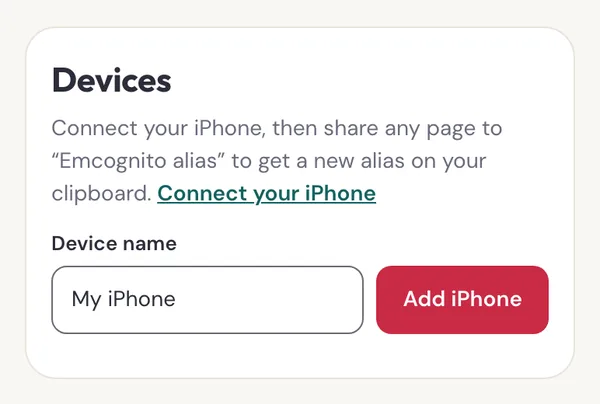
Settings › Devices: name the phone and tap Add iPhone. 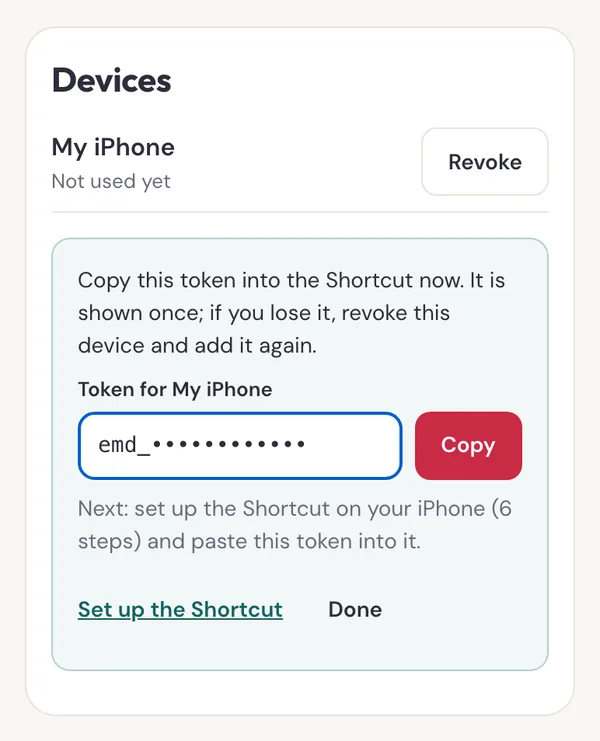
Copy the token now; it is shown once. You can revoke it from the same card. Devices are on Plus and Pro. See Plus
2. Get the Shortcut
Open the Shortcuts app and tap +. The new shortcut opens on Describe a shortcut; tap Editor for the action editor. Find each action with the Search field at the bottom and add them in this order:
- Tap the title at the top, then Rename, and call it Emcognito alias. Tap the input at the top (it reads Apps and 18 more) and choose Safari Web Pages and URLs under Web.
- Get Component of URL: choose Host. Its result is called Component of URL.
- Get Contents of URL:
https://api.emcognito.com/device/aliases. Tap the round arrow to show the options: Method POST; under Headers tap Add new header and addAuthorization=Bearerfollowed by a space and your token; set Request Body to JSON and tap Add new field forsourceandlabel, both set to Component of URL, andevent_sourceset toios_shortcut. - Get Dictionary Value:
emailfrom Contents of URL. - Copy to Clipboard: the Dictionary Value.
- Show Notification: Copied and the Dictionary Value.
Finally tap ⓘ, then Details, and turn on Show in Share Sheet.
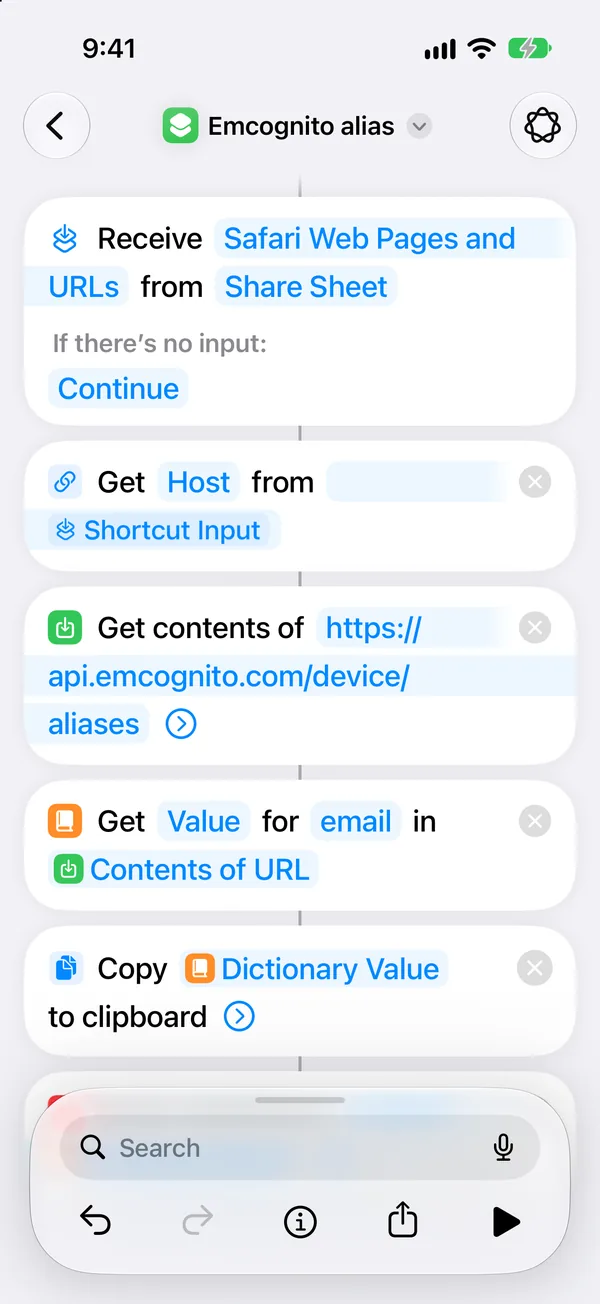
The first actions: take the shared page, keep only its host, ask Emcognito for an alias. 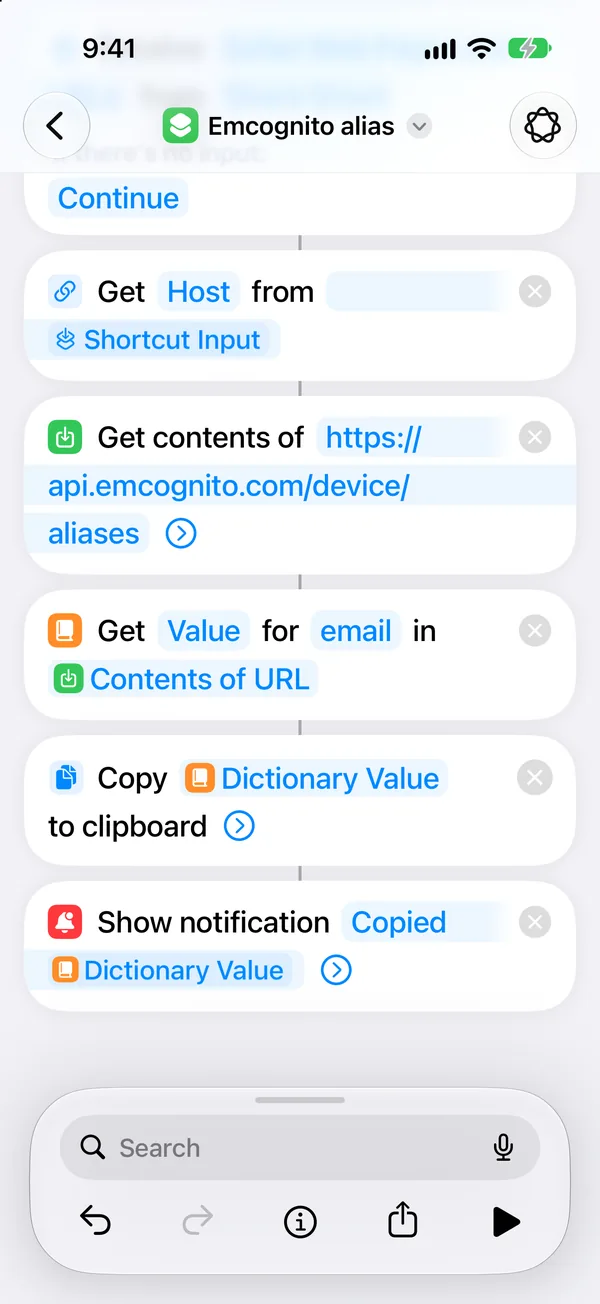
The last actions copy the new address and confirm it with a notification. 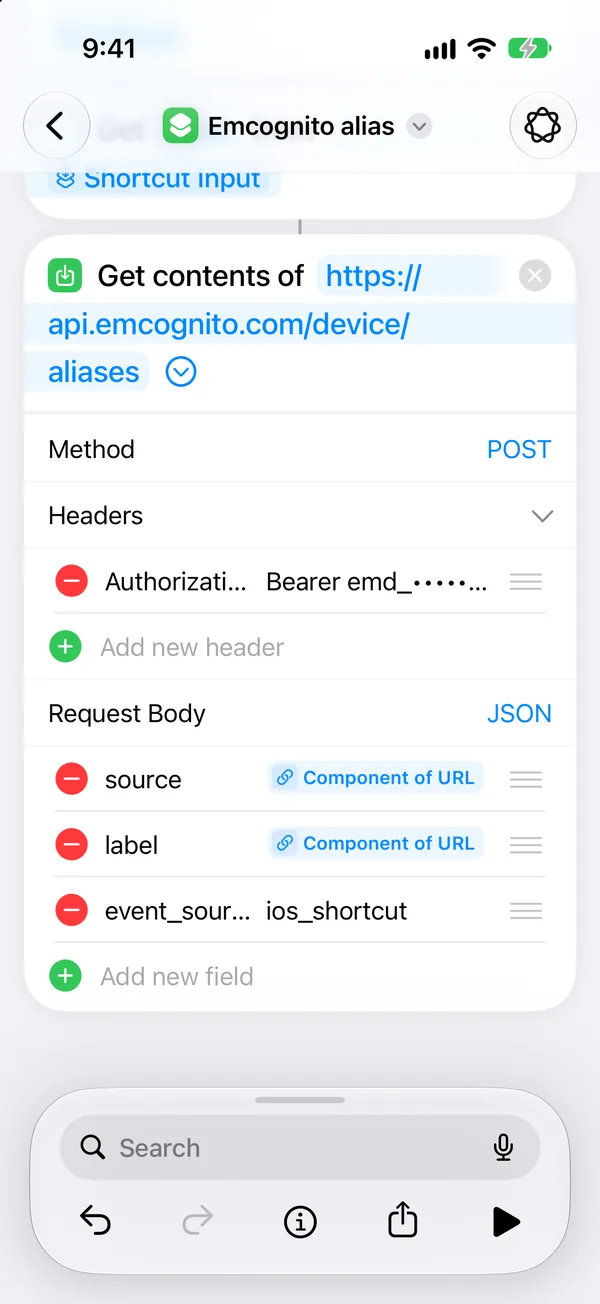
Get Contents of URL, expanded: POST, your token in the header, three JSON fields. 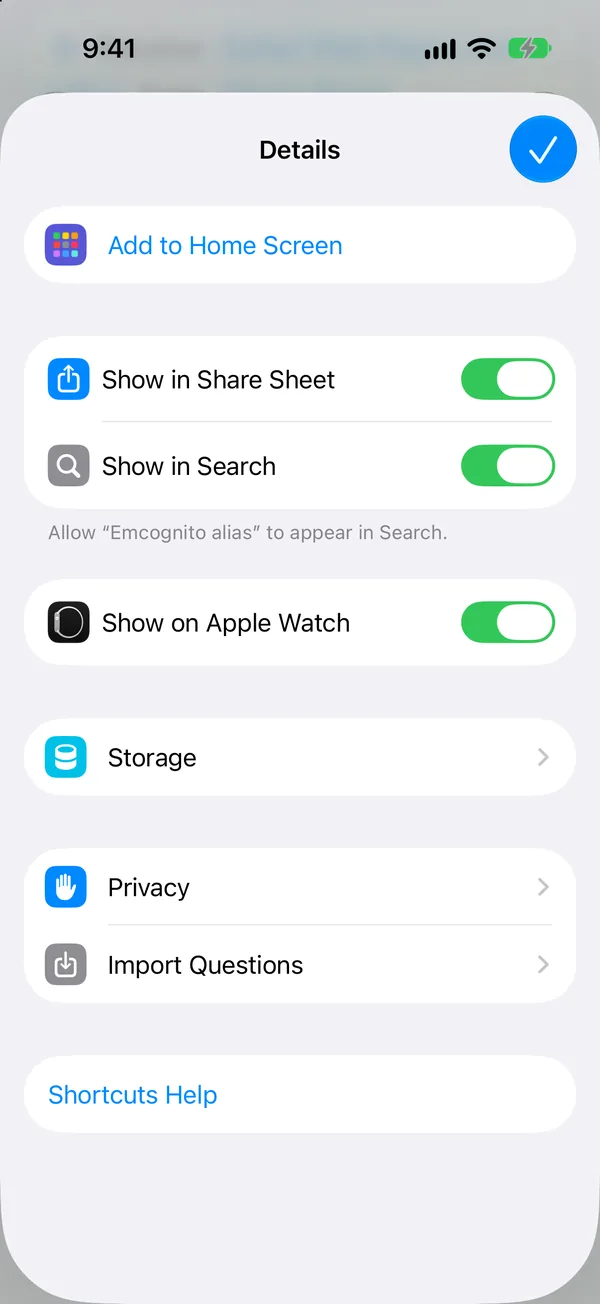
Details: Show in Share Sheet must be on, or the shortcut will not appear in Safari. 3. Try it
In Safari, open the sign-up page, tap … (the page menu), then Share. Tap View More and choose Emcognito alias. You'll see “Copied” and the new address. Paste it into the form.
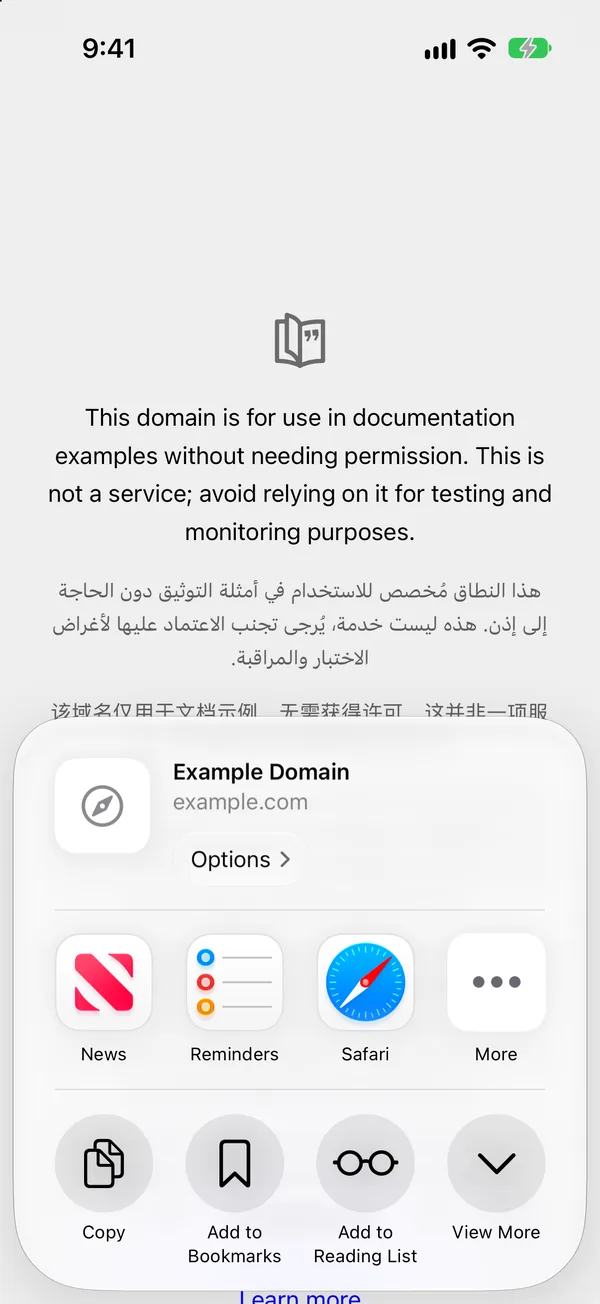
In Safari's share sheet, tap View More. 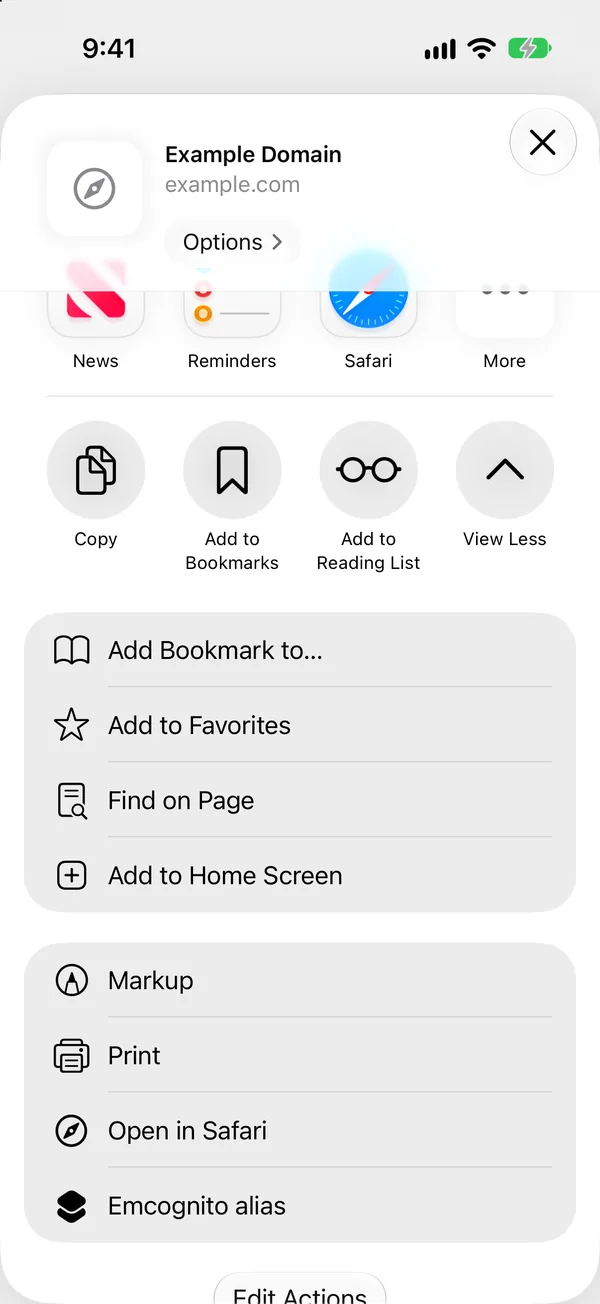
Tap Emcognito alias: the new address is copied for the form.
If something goes wrong
- “This iPhone was disconnected”
- The token was revoked or mistyped. Add the iPhone again in Settings › Devices and paste the new token into the Shortcut.
- “Your plan no longer includes this”
- The Shortcut needs Plus or Pro. Your token is kept for 30 days after a move to Free and works again if you upgrade within that time.
- “Could not create an alias”
- No connection, or a problem on our side. Nothing was copied; try again.
On Android? Install Emcognito from your browser's menu and share to it instead. That is on Plus and Pro from November 3, 2026.