
Leak alerts
New-Sender Alerts and One-Tap Block, Step by Step
On Plus and Pro, Emcognito emails you when a new company starts mailing one of your aliases, so a leaked address shows up the day it leaks. From your delivery log you can block that sender for one alias in one tap: later mail from that domain and its subdomains is stopped and shows as Blocked sender. Unblocking takes effect right away.
Updated
1. Keep new-sender alerts on
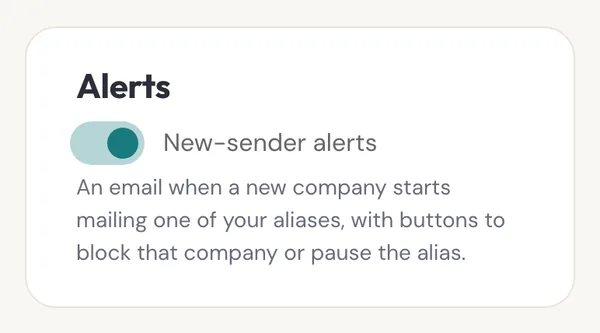
Alerts are on by default for Plus and Pro, under Settings › Billing › Alerts. The first company an alias hears from is the one you gave it to, so it never triggers an alert; the second one does. The email names the new sender, shows its first message as proof, and has buttons to block that company or pause the alias.
2. Block a sender from the delivery log
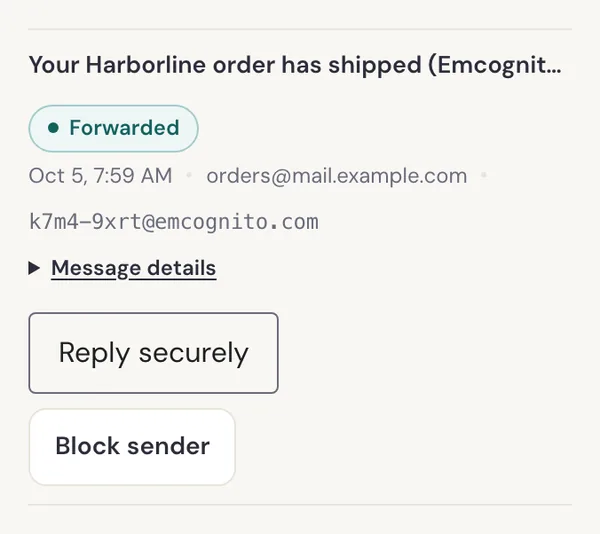
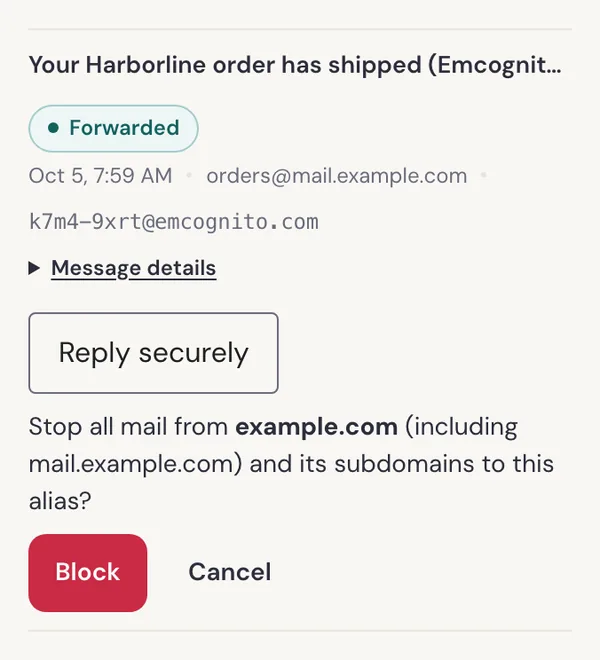
Every message in your delivery log on Plus and Pro has a Block sender button. Tap it and Emcognito asks you to confirm, naming the whole domain it will block, including subdomains. The block applies to that one alias, so the same company can still reach any other alias you gave it.
3. See what was stopped
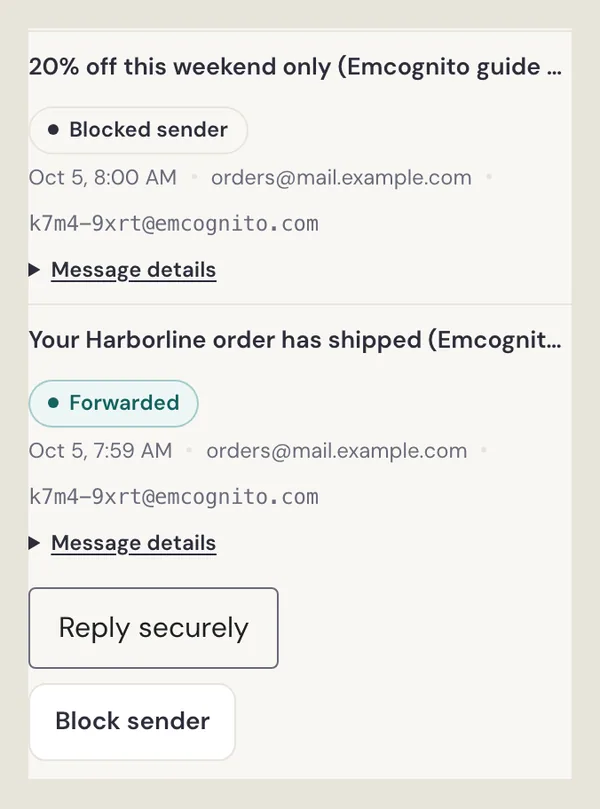
Mail from a blocked sender is not forwarded. It still appears in your delivery log, marked Blocked sender, so you can check what was stopped without it ever reaching your inbox.
4. Undo a block
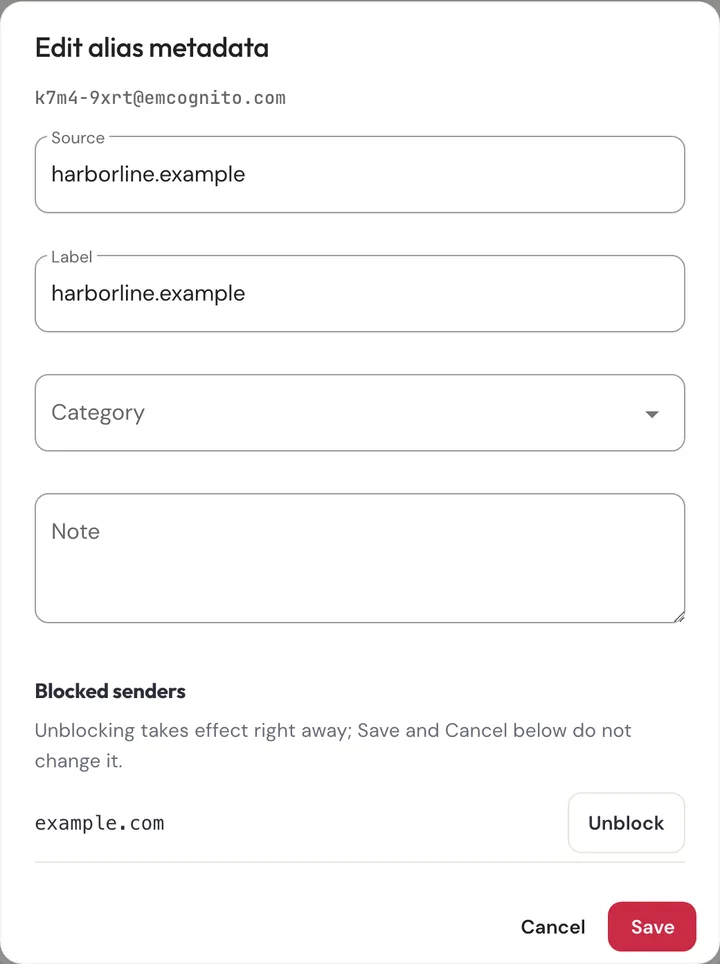
Open the alias in the Command Center and tap its edit button. Blocked senders are listed at the bottom with an Unblock button. Unblocking takes effect right away; Save and Cancel in that dialog do not change it.
Frequently asked questions
Which plans include new-sender alerts and blocking?
Plus and Pro. On Free the Block sender button and the Alerts card are shown locked, and tapping either opens the Plus upgrade.
Does blocking a sender affect my other aliases?
No. A block applies to the one alias it was made on. Mail from that domain to your other aliases is forwarded as usual.
Why didn't I get an alert for the first message an alias received?
The first company an alias hears from is normally the one you gave it to, so it is not news. Alerts start with the second sender domain.
Can I pause an alias instead of blocking one sender?
Yes. The alert email has a button to pause the alias, and you can suspend any alias from your dashboard. Pausing stops all of its mail, not just one sender's.
Unlimited aliases, free. No alias cap.
100 forwarded emails a month at no cost, no credit card, passwordless sign-in.
Create your free aliases